Pentaho Data Integration is an open source tool that provides Extraction, Transformation, and Loading (ETL) capabilities.
While it's an essential DWH tool, I use it quite a lot also as an integration tool, where it performs well.
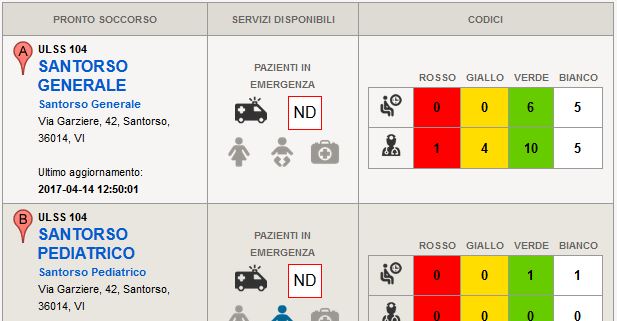
For example, we use it to populate a table with the current load of our emergency rooms,
then a Perl application will publish the contents of the table in JSON format, and finally
a Web Application and an Android Application read the content of the JSON and shows the data
to the users formatted in a nice way:
We also use it to transfer historical data from legacy applications to the new ones. To distribute patients data between
different softwares of different vendors. To do quality checks on our tables, and generate automatically emails with alarms.
Or to fetch XML or Excel files we get from web services, and integrate the contents into our live systems. To prepare
monthly TXT or Excel or XML extractions.
All those tasks are managed by some jobs that calls multiple transformations, but I have to schedule those jobs somehow. And I want to keep track of which jobs are run, how long they took to execute, which ones failed.
But how's an effective way to do all of this?
This is what I am using, and I find it very flexible and pretty elegant.
I wanted to use the standard Windows Scheduler, not the Pentaho scheduler. For Linux machines the procedure is very similar.
First of all I have created a StartJob.cmd batch file, that accepts only one parameter: the job to be executed.
Here's how it looks like:
@echo off

set kitchen="D:\Pentaho\kettle\data-integration\kitchen.bat"

set repository="Repository ULSS4"
set repository_user=username
set repository_pass=password

set job_dir="/Updates"
set job_name=%1
set log="D:\Script\Spoon\log\"%2".log"

%kitchen% /rep:%repository% /user:%repository_user% /pass:%repository_pass% /dir:%job_dir% /job:%job_name% /level:Basic >> %log%
We can start a job very simply with the following command:
C:\>StartJob.CMD "job_updates_15min"
which is more convenient than calling the kitchen.bat batch file directly since most parameters are pre-configured already.
I then scheduled a list of jobs to be executed at different intervals, e.g.
- job_updates_daily
- job_updates_1h
- job_updates_mondays
- job_updates_1th_month
this has to be configured only once, then we won't touch the task scheduler anymore.
Each of those jobs will contain a list of sub-jobs that will be executed (e.g. job_update_json, job_send_email, ...) and that will perform some specific tasks.
Every scheduled job (daily, 1h, 15min, etc.) is structured this way:
- first we define the starting point for job execution
- then we execute a transformation that sets in a variable the current date (for logging reasons)
- finally, we insert in sequence all the jobs we actually want to execute (e.g.
job_update_json, job_send_email, ...)
this is how it looks like:
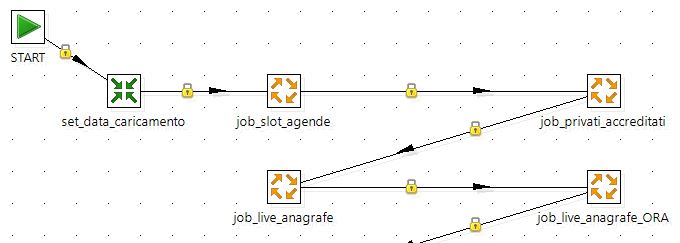
make sure that connections are black (unconditional), so a failing job won't prevent the following jobs
to be executed.
Whenever I prepare a new job and I want to schedule it daily, I will add this new job to the job_updates_daily outer job. And whenever I change my mind and I want to execute it hourly, I will just remove it from the job_updates_daily and add it to the job_updates_1h job.
The main goal of the log table is to keep track of all tasks (jobs/transformations) that have been executed, when they have been executed, how long they took, how many rows were updated, which ones failed.
The basic table structure is defined this way (in PostgreSQL syntax):
create table log_updates (
  id serial primary key,
  data_esecuzione varchar(20),
  flagtipotabella varchar(20),
  nometrasformazione varchar(40),
  dtiniziocaricamento timestamp,
  dtfinecaricamento timestamp,
  esitocaricamento int,
  read int,
  written int,
  updated int
  unique (data_esecuzione, flagtipotabella, nometrasformazione)
)
and it will look like:
| id |
data_esecuzione |
flagtipotabella |
nometrasformazione |
dtiniziocaricamento |
dtfinecaricamento |
esitocaricamento |
read |
written |
updated |
| 1 |
2017-04-14 |
DWH |
dim_doctors_update |
2017-04-14 15:00:01 |
2017-04-14 15:03:35 |
0 |
743 |
3 |
86 |
| 2 |
2017-04-14 |
Web Apps |
update_ps_json |
2017-04-14 15:03:37 |
2017-04-14 15:05:54 |
2 |
|
|
|
| 3 |
2017-04-14 |
Web Apps |
update_patients |
2017-04-14 15:05:59 |
|
1 |
|
|
|
here we can see that:
- the task
DWH / dim_doctors_update was executed successfully (esitocaricamento=0)
- the task
Web Apps / update_ps_json ended up with an error (esitocaricamento=2)
- the task
Web Apps / update_patients didn't finish yet (maybe it's still running or maybe it hang...).
Whenever a new job starts, a single row with esitocaricamento=1 will be generated:
| data_esecuzione |
flagtipotabella |
nometrasformazione |
esitocaricamento |
dtiniziocaricamento |
| 2017-04-14 |
DWH |
dim_doctors_update |
1 |
2017-04-14 15:00:01 |
and an Insert/Update step using the lookup keys (data_esecuzione, flagtipotabella, nometrasformazione) will add it to the logs table (or will reset the row if the same task will be performed multiple times on the same day)
Then, whenever the task end succesfully, another row will be generated. with the same lookup keys ('2017-04-14', 'DWH', 'dim_doctors_update') but an updated status esitocaricamento=0 and an updated current_timestamp as the end datetime (and eventually the number of rows read, written and updated).
I'm using an Insert/Update step also here, with the same lookup keys, so the status will be updated from 1 to 0 (great!), the datetime_start column will be left untouched but the datetime_end, read, written, updated columns will be updated.
Whenever the task end unsuccesfully, we are doing the same but we will update the status from 1 to 2.
If the tast is still running, the status will be 1. This solves a common logging problem - first we insert a row with the status "executing", then the status will be updated to "completed" once we are sure that the task ended properly.
This task is for logging pourposes. We are going to run a query that returns the current date:
select current_date as currentdate from dual
and save in the data_caricamento variable. Here's how it will look like:
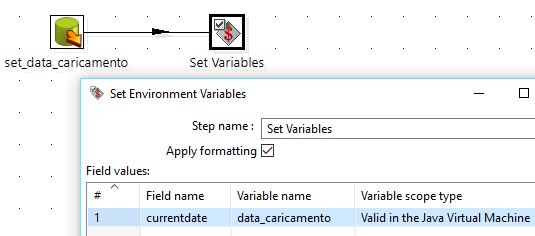
(here I assume that having a daily log is fine: only the last execution of the day will be logged, previous ones will be overwritten)
All standard jobs that performs a specific task will share a similar structure:
- we define a starting point
- then we will call the transformation
general_log_start (it puts on the log table a row informing us that that the job has started)
- then we call one or more transformations (or sub-jobs) that will perform the taks we need, eg. import some data, update a table, etc.
- when everything is okay (green connections) we will call the
general_log_end transformation called general_log_end OK
- when anything goes wrong (red connections) we will call the
general_log_end transformation called general_log_end KO
and here's how it will look like in Kettle:
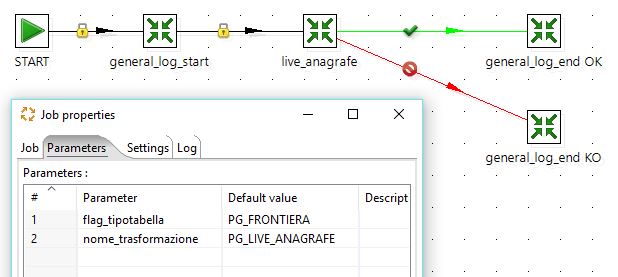
as we can see from the picture above, I have defined two parameters:
- flagtipotabella eg.
DWH, Web App, Other
- nometrasformazione eg.
job_update_patients, job_send_email
those parameters will be used for logging purposes by the general_log_start and general_log_end jobs.
This task will insert a new row on the logs table with the following informations:
data_caricamento which is the current date time of the shceduled taskflagtipotabella, taken from the parameters of the outer jobnometrasformazione, taken from the parameters of the current job- the current date time, which will be the start date/time
esitocaricamento=1, the task has been started
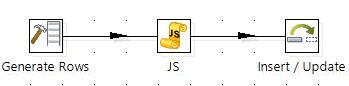
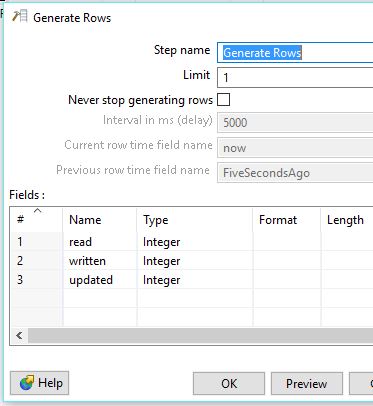
Here's how the generate rows step will look like:
Here's a JavaScript step that will get the parameters from the outer job:
var dtcaricamento = getVariable("data_caricamento","");
var nometrasformazione = getVariable("nome_trasformazione","no");
var flagtipotabella = getVariable("flag_tipotabella","no");
var dtiniziocaricamento = new Date();
var dtfinecaricamento;
var esitocaricamento = 1
and here's how the Insert/Update step will look like:
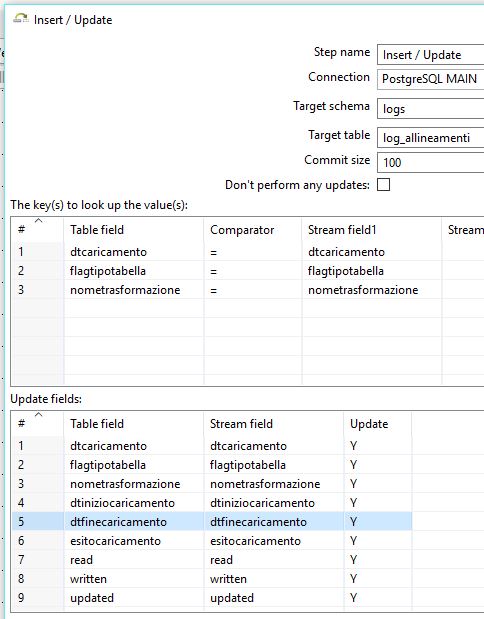
The general log end is very similar to the general log start, but it will either mark the task as Completed (esitocaricamento=0) or Failed (esitocaricamento=2). The parameter esitocaricamento has to be defined
as a parameter (right click -> Edit job entry -> parameters).
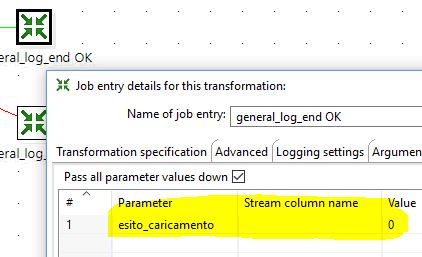
only the JavaScript code is different:
var dtcaricamento = getVariable("data_caricamento","");
var nometrasformazione = getVariable("nome_trasformazione","");
var flagtipotabella = getVariable("flag_tipotabella","");
var esitocaricamento = getVariable("esito_caricamento","");

var read = getVariable("LINES_READ","") | "";
var written = getVariable("LINES_WRITTEN","") | "";
var updated = getVariable("LINES_UPDATED","") | "";

setVariable("read", null, "p");
setVariable("written", null, "p");
setVariable("updated", null, "p");

var dtfinecaricamento;

if (esitocaricamento == '0') {
  dtfinecaricamento = new Date();
} else {
  dtfinecaricamento = null;
}
The transformation will just perform the actual task, something like reading data from one table,
perform some calculations, writing the output to another table.
The interesting part here is to use an Output Step Metrics to get the number or rows read, written, updated
and make it available to the outer job where the General Log End transformation will save those values in the logs table:
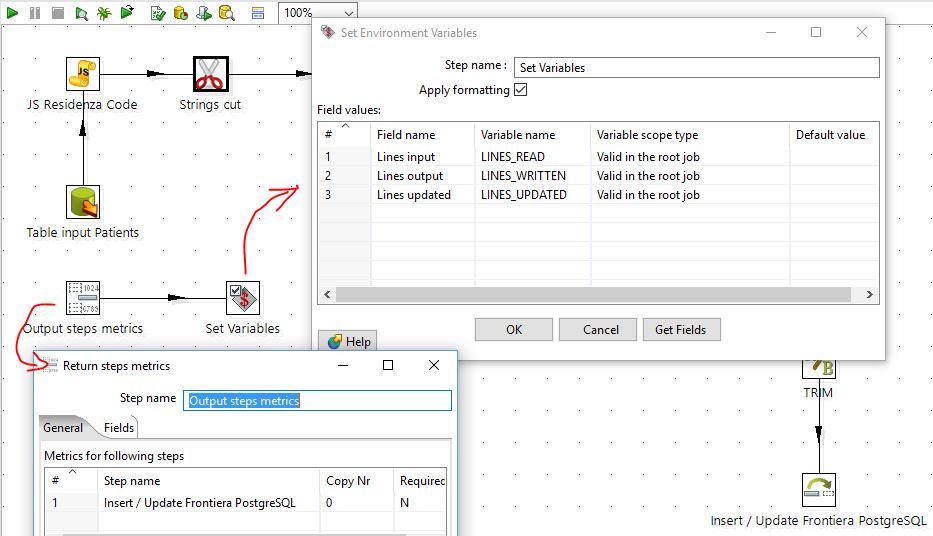
Setting up some scheduled task using this technique requires some more work the first time,
but once the system is properly set up managing scheduled tasks becomes fun!